Give answers room.
Use Open Text when people need to describe an experience, explain a goal, or add context.
THE RIGHT QUESTION. THE RIGHT KIND OF ANSWER.
A quick introduction. A thoughtful explanation. The right email address. Give every answer a clear place to start with text and contact questions that fit the task.
Start with a free account · Build without code
The right detail, in the right place.
THOUGHTFUL QUESTIONS. MORE USEFUL ANSWERS.
Thoughtful wording and the right question type help people understand what you need.
Use Open Text when people need to describe an experience, explain a goal, or add context.
Use Email, Phone Number, or Website for contact information rather than a generic numeric field.
Explain why you need the information and make questions optional when an answer is not essential.
BUILT INTO YOUR FORM
Match the field to the answer and keep personal information requests purposeful.
Read the input-type guideFor introductions, briefs, explanations, and feedback in the respondent’s own words.
For contact details, with clear wording about why you need them.
For a portfolio, company website, or another relevant web address.
ONE QUESTION CAN OPEN A CONVERSATION
Start with the goal, then ask for the contact detail you need to follow up.
Example prompt · Adapt it to your audienceInvite a specific improvement without suggesting the answer.
Example prompt · Adapt it to your audienceCombine a written introduction with a relevant website or portfolio link.
Example prompt · Adapt it to your audienceGET A FEEL FOR THE EXPERIENCE
Switch between example inputs and try an answer. This browser-only exercise does not save or submit your information. Use made-up details.
An input-format exercise. Nothing is saved or submitted.
FROM A GOOD QUESTION TO A WORKING FORM
Add Open Text, Email, Phone Number, or Website from the question picker.
Explain the information you need, its purpose, and any expected format. Review required-answer options.
Test a valid answer, an invalid format, and a blank answer. Check stored synthetic values before using them in a workflow.
Inside RapidoForm
See where you choose questions, edit the wording, and preview the experience. These real builder screens show a sample feedback form you can use as a starting point.
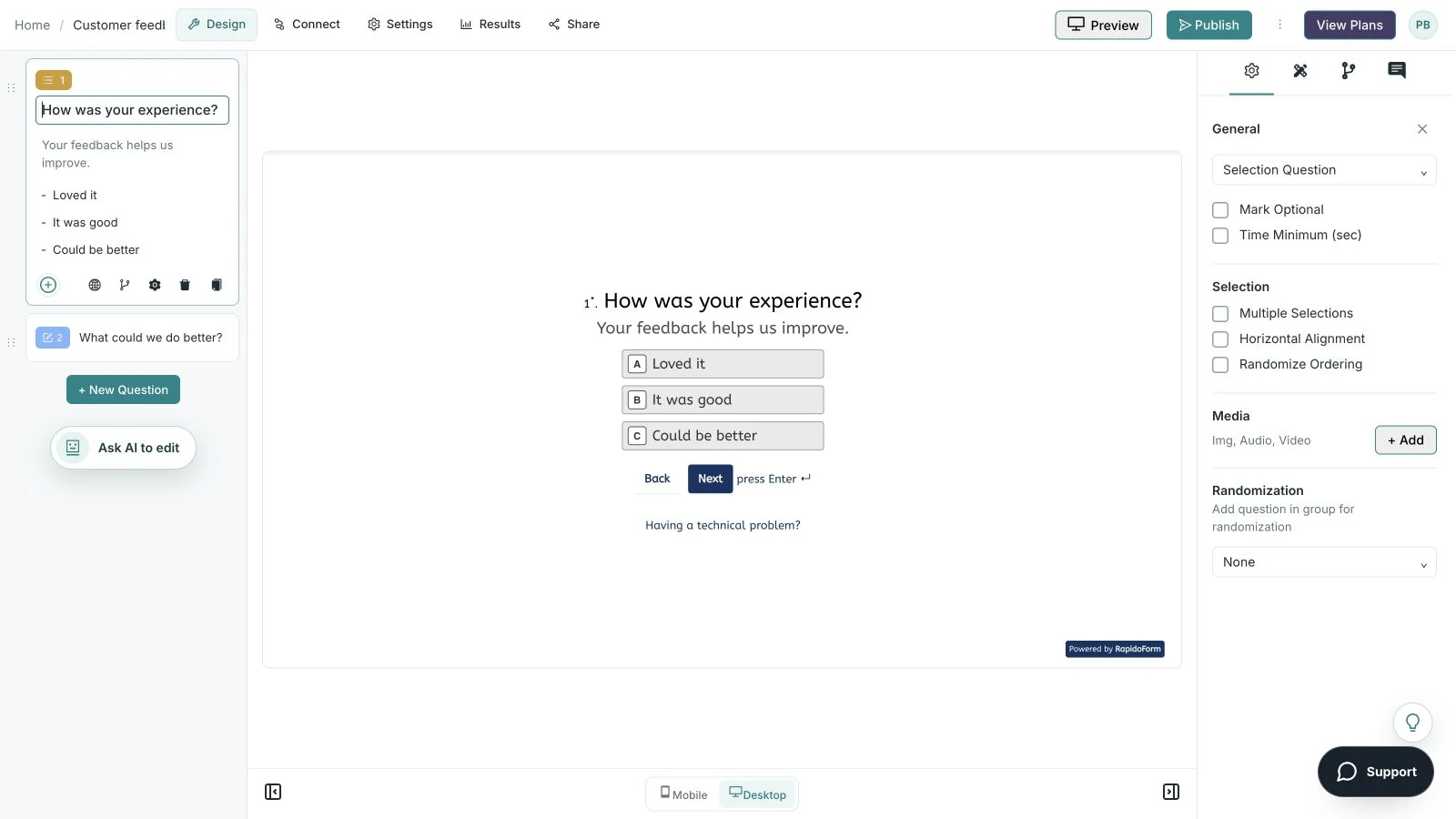
Showing: Make the wording yours. Screens use sample content. Feature availability varies by plan.
A quick look around
Choose a question, edit the answers, explore themes, and switch to the mobile preview.
A silent guided sequence of real builder screens, using a sample feedback form.
Try the builder for free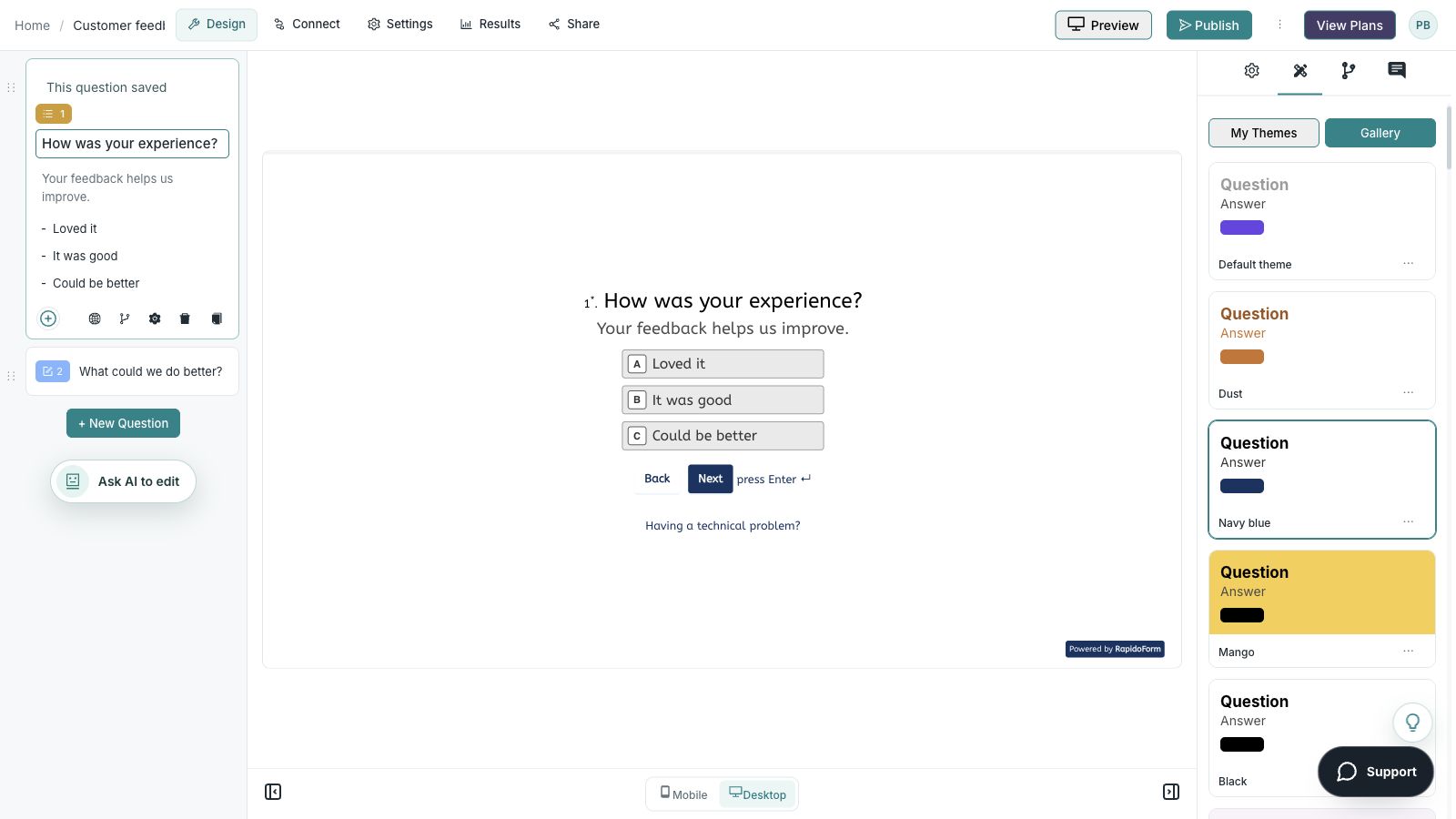
The question-type guide lists Open Text, Email, Phone Number, and Website. Choose the matching input for the information you need and review its options in your builder.
No. A phone answer does not prove someone owns the number or has agreed to receive marketing messages. Explain the purpose and obtain any permission your workflow requires separately.
No. The local example demonstrates input formats and required-answer feedback. It does not save or submit data and does not establish validation behavior in a published form.
Create a free account to explore the builder. Question availability, response and storage allowances, and advanced features depend on your workspace and plan. Check the current pricing page and the question picker’s plan indicators before launch.
BETTER QUESTIONS START HERE
Explore the builder. Choose the plan that fits.