Keep a review record
Decide which answers your team needs in a spreadsheet or another structured destination. Check the available setup and map those fields deliberately.
Give reviewers the context they need.
Connected workflows
Explore RapidoForm integrations, find a connection for your workflow, and plan field mapping, permissions, testing, and follow-up before sharing your form.

Find a connection
Choose an app to see its published connection options and setup instructions.
24 connections available
Zapier Automation moves info between survey and other apps you use
See connection optionsSend a message in Teams channels when your survey is answered. Get everyone on the same page with this integration.
See connection optionsAutomatically get an SMS message on your phone when somebody answers your survey.
See connection optionsTrigger an email to your respondent and notify your team. Collaborate with your team and keep your leads warm..
See connection optionsEasily sign attendees up automatically to your Zoom webinar using your rapidoform survey.
See connection optionsAdd new contacts with Office 365. Great for customizing your workflows or interacting with your audience in a personal way.
See connection optionsCreate new Subscribers in Campaign Monitor. Make it easier to manage and stay in touch with your audience.
See connection optionsConnect your surveys to Zendesk Sell to capture leads. Easily build and maintain sales force automation.
See connection optionsGet email notifications letting you know of a new entry on your survey.
See connection optionsConnect with customers using personalized email campaigns, SMS, and automated messages.
See connection optionsCollect new orders in your online store from your survey submissions.
See connection optionsSend an email in Microsoft Outlook when your survey receives a response
See connection optionsSend a message to a Discord channel when your survey receives a response.
See connection optionsSend survey responses to Google Docs as a new text file. Great for organizing and collaborating with your team.
See connection optionsAdd MySQL rows Rapidoform surevey responses
See connection optionsAdd subscribers to convertKit forms new rapidoform survey responses
See connection optionsCreate tasks in ClickUp for new RapidoForm Survey responses.
See connection optionsSend Discord channel messages for new Rapidoform survey respones
See connection optionsCreate sticky notes in Mural from new RapidoForm survey responses.
See connection optionsCreate Mailerlite subscribers for new RapidoForm survey responses.
See connection optionsCreate Asana tasks from new RapidoForm survey responses
See connection optionsCreate detailed events in Google Calender for new RapidoForm Survey responses
See connection optionsCreate requests in Jira srvice Management for new Rapidoform survey responses.
See connection optionsCreate registrants in Go To Webinar from new RapidoForm survey entries
See connection optionsInside RapidoForm
Start by making the questions clear and checking the respondent experience. This tour shows the form builder; use the integration's setup guide for the connection steps.
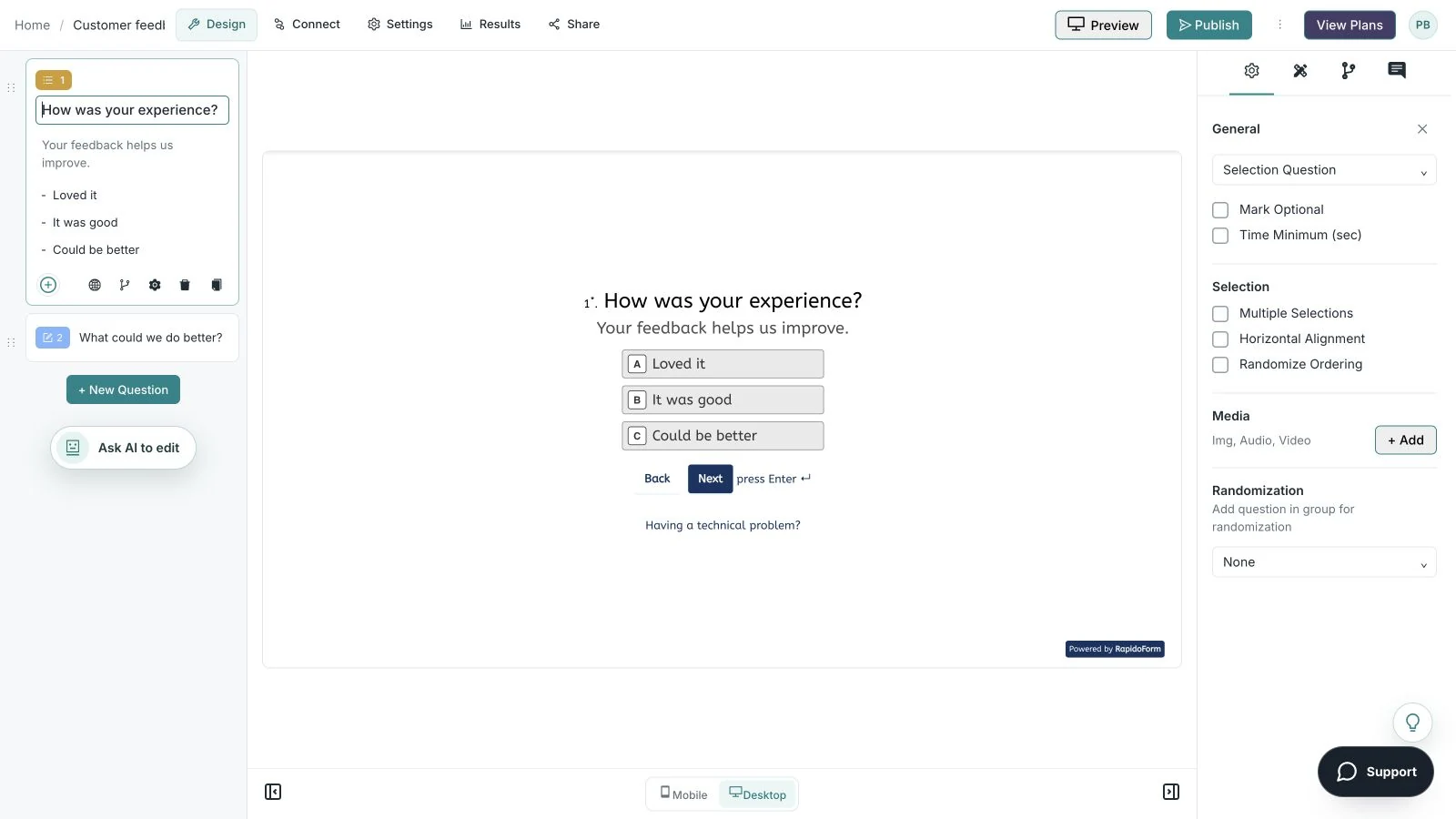
Showing: Make the wording yours. Screens use sample content. Feature availability varies by plan.
A quick look around
Choose a question, edit the answers, explore themes, and switch to the mobile preview.
A silent guided sequence of real builder screens, using a sample feedback form.
Try the builder for free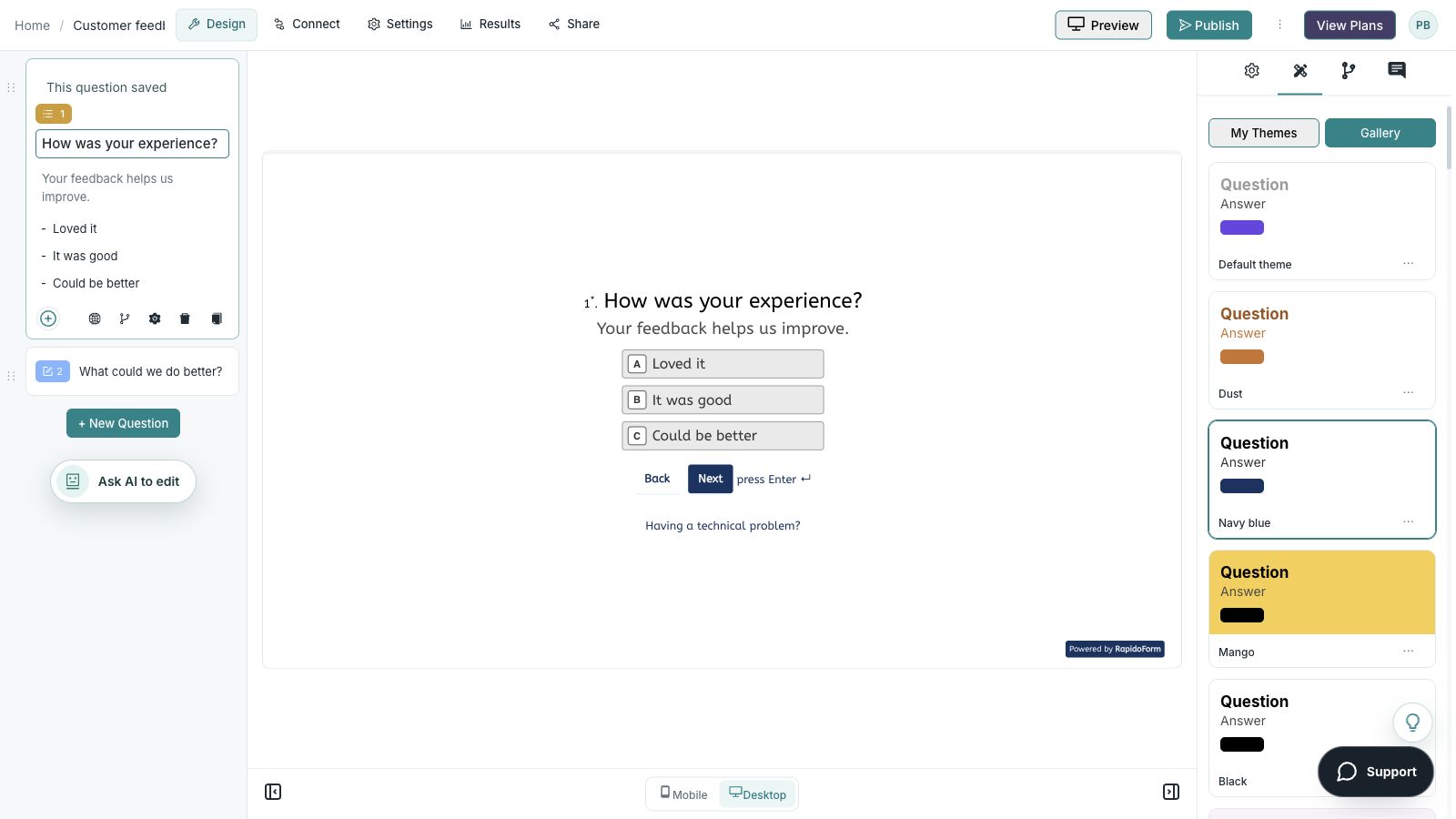
Find your starting point
Start with a situation your audience recognizes, then shape the questions around the next step.
Decide which answers your team needs in a spreadsheet or another structured destination. Check the available setup and map those fields deliberately.
Choose the person or channel responsible for the next step, and include only the information needed to act.
Connect the stated purpose of the form with the next conversation, scheduling step, or response review.
Before you connect
Choose one useful destination for the response, then verify the complete handoff before adding more steps.
Decide who needs the information, where it belongs, and what should happen after a submission. Check feature availability in your workspace plan.
Connect only the information needed for the task. Verify permissions, required values, contact preferences, and the destination’s expected formats.
Check that the record arrives correctly and that the next action happens once. Review missing fields, duplicates, and how failures will be noticed.
Ready for real responses
Publishing a form and connecting a destination are separate steps. Verify both in the environment your audience will use.
Put the idea into practice
Plan the information the next person or destination needs before configuring the connection.
Example introduction
Tell us what you need help with. We will use the details to prepare the appropriate next step.
A new project / An existing request / A general question
Choose a category that can be understood at the destination.
A short description of the goal and relevant context.
Map the context needed to prepare a useful reply.
The appropriate contact details for the stated request.
Include contact information only where the workflow needs it.
Who this is for
People submitting a request your team will review.
How the path works
Choose a published setup route for the intended destination. Map the necessary fields and verify a deliberate test response, including an unanswered optional field.
Example ending
“Your request has been received. The team will review it and use the contact details provided for the appropriate follow-up.”
Illustrative setup. Adapt the wording and behavior to your audience.
After the first response
A connection supports a process. Review the destination, ownership, and next action alongside the fields being delivered.
Check that the destination receives the expected field values and the context needed to act.
Agree how the team will handle a repeated submission, an empty optional field, or a response that needs a different owner.
Review field mapping and permissions when the form, destination, or review process changes.
Make the idea yours
You have the idea. Give it a clear structure, make it feel like your brand, and preview the experience before inviting your audience.
Start free. Explore paid features and limits when your workflow needs them.
A focused form, one useful destination, and a test that verifies the complete handoff.
Good questions
Feature availability and usage limits can depend on your plan and the connected service. Check the pricing page and setup instructions before committing to a workflow.
Submit a deliberate test response, verify the values and destination, and confirm any follow-up action. Check missing optional answers and repeated submissions so the team knows what to expect.
Explore the published connection options and the help center. Do not assume that an app or particular automation is supported without reviewing its available setup.
Start with a useful form
Choose a template, adapt the questions, and test the response journey before inviting your audience.
Explore templates