Hear the why.
Collect spoken feedback, or pair a rating or choice with an audio explanation.
Explore audio questionsGuide · AI in the builder
Use AI to help draft and refine a form, then bring your knowledge of the audience and workflow to the review. Treat every suggestion as a starting point you can improve.
Start free Audio & video questions Customize without code

Go deeper than a text box. Add audio and video questions to your forms and surveys, so people can explain an experience in their own words.
Collect spoken feedback, or pair a rating or choice with an audio explanation.
Explore audio questionsCollect video answers for customer stories, introductions, and qualitative research.
Explore video questionsRecording and storage allowances vary by plan. Compare plans →
Start with the outcome
The builder’s AI assistant can help you work on form content. A clear request gives it direction; a careful review makes the proposed changes appropriate for your actual workflow.
Describe what the form should accomplish, who will answer, and what information matters. Specify a short sequence instead of requesting an open-ended questionnaire.
Ask for a clearer prompt, a shorter introduction, or a more appropriate tone. Review the proposal for meaning, bias, and assumptions about the audience.
Check questions, choices, required fields, settings, and any logic changes. AI availability and usage depend on the current workspace plan.
Inside RapidoForm
After drafting your questions, review the wording, format, and respondent experience. This general builder tour shows manual editing and preview tools; it does not demonstrate AI generation.
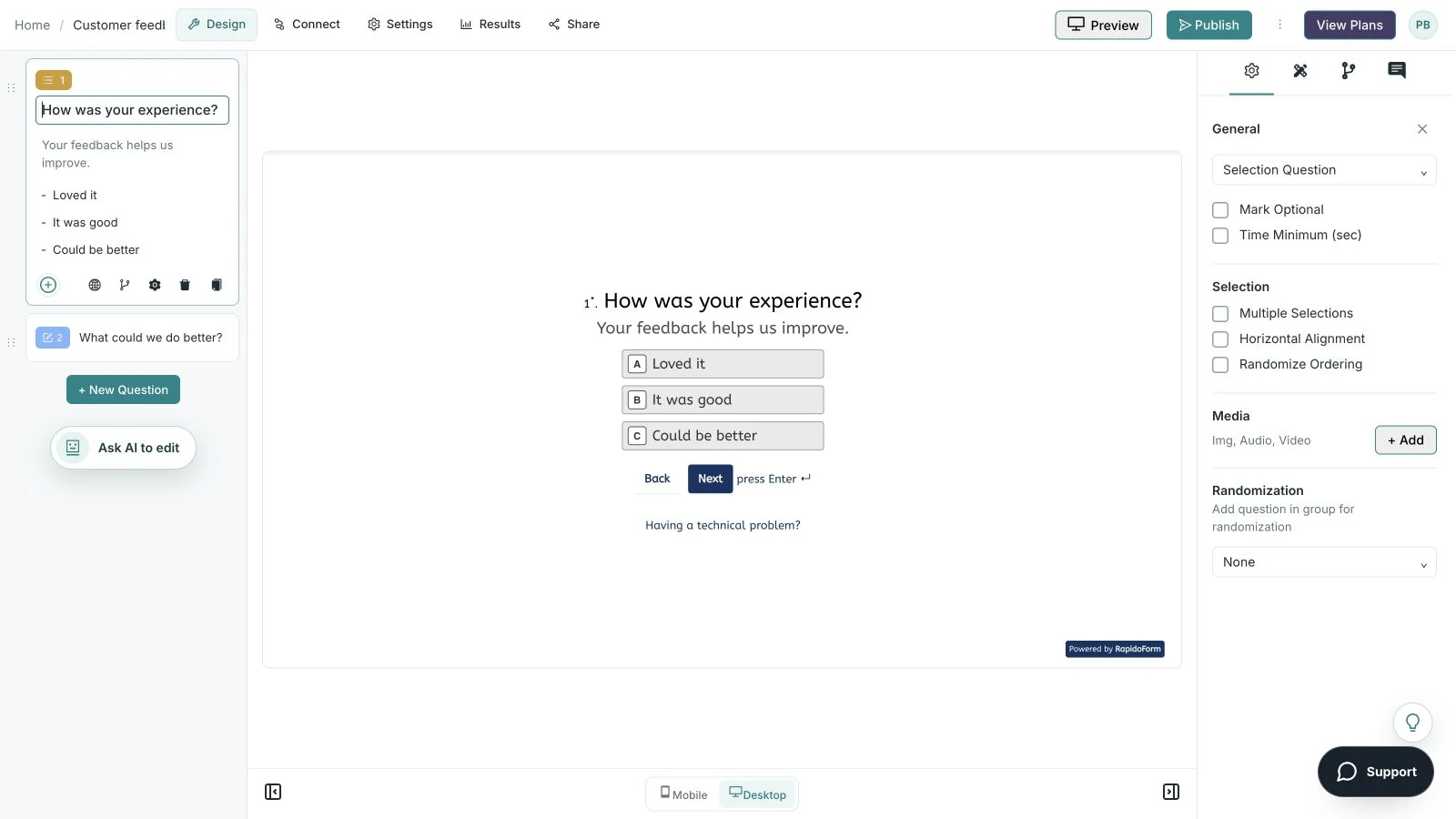
Showing: Make the wording yours. Screens use sample content. Feature availability varies by plan.
A quick look around
Choose a question, edit the answers, explore themes, and switch to the mobile preview.
A silent guided sequence of real builder screens, using a sample feedback form.
Try the builder for free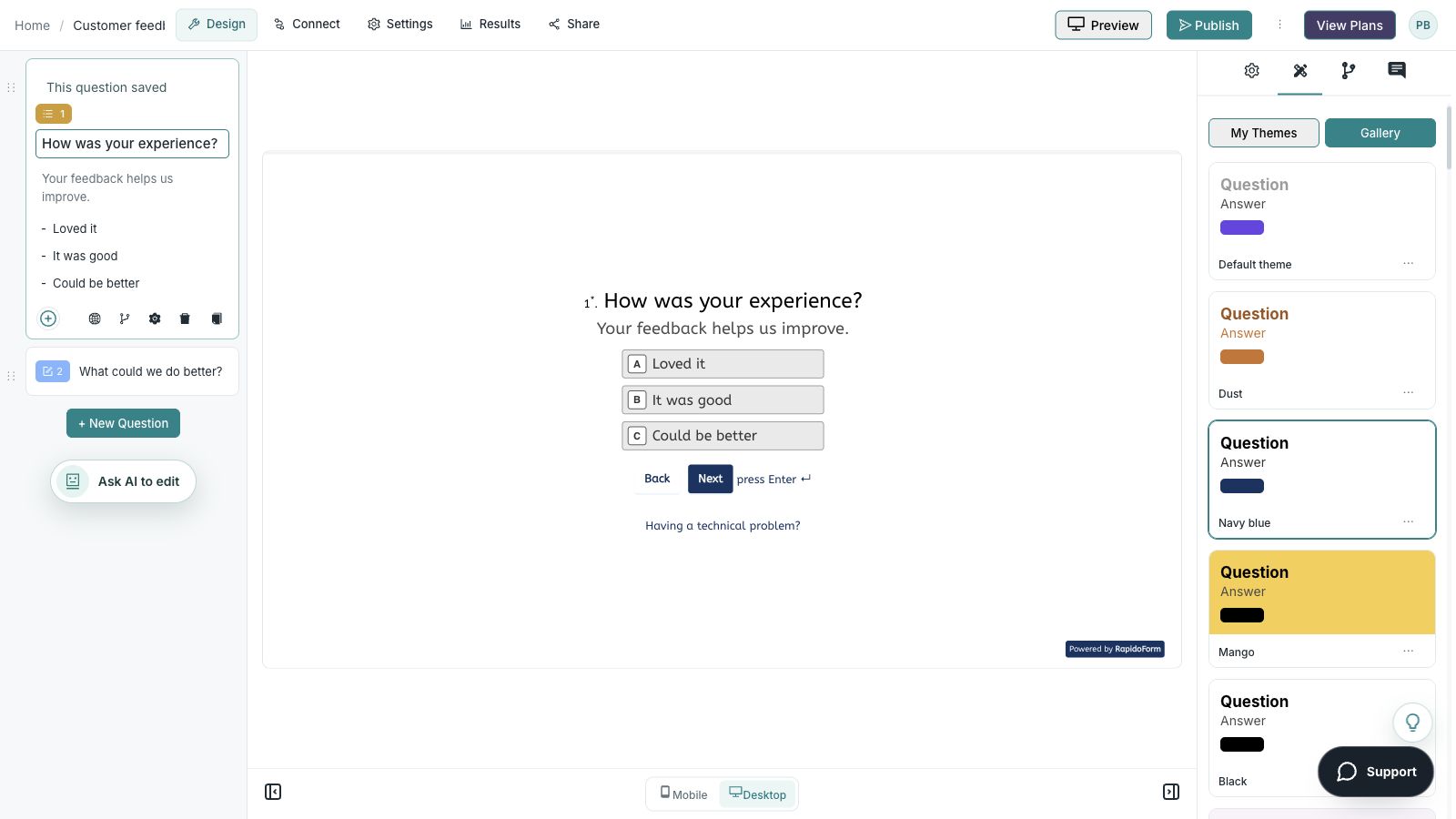
Picture the possibility
A creator needs a customer feedback form but has not settled the wording. A focused AI request can help produce a draft, while the creator reviews the questions, choices, tone, and workflow before sharing it.
Why RapidoForm
RapidoForm’s AI assistant can help with form content in the builder. A specific brief gives the draft direction, while the visual editor and preview let you bring the final wording and workflow back to your actual audience.
Explore current plans and usageOpen an editable form and use the available “Ask AI to edit” assistant with an audience, a goal, and a short set of constraints. A focused request is easier to assess than a general demand for a perfect form.
Read the current AI workflowReview the proposal and adjust questions, choices, and required answers. Use the normal question controls to make the final form fit the process you own.
Explore the question editorCheck the actual question sequence, settings, and any branching. The draft helps you begin; your review determines whether the form is ready to share.
See publishing and sharingFrom principle to practice
Open a form you can edit, go to the Design tab, and use “Ask AI to edit” when the assistant is available in your workspace.
Name the audience and goal, then give constraints such as question count, tone, and optional fields. Provide only the information needed for the task.
Check the wording, answer options, settings, and logic before applying the suggested changes. Do not assume a general request configures every connected workflow.
Test desktop and mobile views, validation, and each branch. Confirm the intended changes are saved before publishing the form.
“Draft five short questions for customers who have just completed their first order. Ask about checkout clarity, delivery expectations, and overall experience. Use neutral wording, a labeled satisfaction scale, and an optional final comment.”
After the draft, ask for one specific improvement at a time. For example: “Rewrite the delivery question so it asks about expectations without assuming there was a delay.”
Read the current AI help guideCheck that required answers and branching still match your process. A draft does not prove that scoring, payment connections, integrations, or publication settings are complete.
Avoid entering passwords, API keys, or confidential respondent answers. The assistant can load conversation history; consult current privacy information when deciding what to include.
Explore AI assistant connectionsFind your starting point
Start with a situation your audience recognizes, then shape the questions around the next step.
Describe the form’s goal and the information needed.
Ask for a shorter, more neutral version of a specific prompt.
Ask for duplicated topics or missing context to be identified.
Make it useful
Specific requests are easier to review because you can compare the proposal with a clear intention.
| Goal | Example request | Review before applying |
|---|---|---|
| Draft a feedback survey | Create four neutral questions about a recent support experience. | The questions do not assume a positive result. |
| Simplify a question | Rewrite this prompt in plain language without changing its meaning. | No necessary context or qualification was removed. |
| Improve answer choices | Suggest distinct choices and a not-applicable option. | The options fit the audience and do not overlap. |
| Reduce length | Suggest which questions duplicate information. | No essential operational field was removed. |
| Clarify an ending | Draft a confirmation that explains our next review step. | The wording does not promise an unstaffed response time. |
Use these as starting points. Adapt the wording, choices, and required fields to your audience before publishing.
A small change with a purpose
Clear wording helps someone give you the information you actually need. Here are two improvements to try.
“Make me a great survey.”
“Draft four neutral questions for customers who just completed their first order.”
A defined audience and moment give the request direction.
“Fix all the logic and publish it.”
“Suggest changes to this question sequence, then explain what still needs review.”
A reviewable request keeps the creator involved in the final decisions.
Put the idea into practice
Draft a short survey about a recent support experience.
Example introduction
We would like to understand how clear the support conversation was and what would have made the next step easier.
Draft four neutral questions about a recent support conversation. Include a labeled clarity scale and an optional comment.
Specify the audience, moment, length, and formats.
Rewrite the follow-up so it does not assume the customer had a negative experience.
Review a particular assumption rather than requesting a vague improvement.
Check the wording, choices, required fields, and final confirmation.
Bring the proposal back to the actual respondent journey.
Who this is for
Customers who have just completed the relevant interaction.
How the path works
If the survey offers a follow-up, review the conditional contact path yourself. Check AI availability and current usage in your workspace before relying on it for the draft.
Example ending
“Thank you for sharing your experience. We will use the feedback to review how we explain and support the next step.”
Illustrative setup. Adapt the wording and behavior to your audience.
After the first response
The most useful AI workflow makes the creator’s intention clearer. Keep a short record of what you asked for and what you decided to change.
Check that the questions serve the stated goal and audience. Remove assumptions or extra topics that do not belong.
Replace unclear language, review sensitive requests, and check that the choices cover realistic experiences.
Test validation, settings, and each branch. Confirm the final changes have saved before publishing through the normal workflow.
The details matter
Give the form a complete trial run, including the routes you do not expect most people to take. Check your workspace plan before relying on a feature or response limit.
Compare plan featuresMake the idea yours
You have the idea. Give it a clear structure, make it feel like your brand, and preview the experience before inviting your audience.
Start free. Explore paid features and limits when your workflow needs them.
A focused brief, a reviewed question sequence, and a preview checked by the person who owns the workflow.
Good questions
More detail before you get started.
Visit the help centerDo not assume a drafting request also publishes the form or configures the whole workflow. Review the changes, test the experience, and use the normal publishing process when ready.
No. Review for accuracy, relevance, neutral wording, and suitable answer choices. Your team remains responsible for the form and its use with respondents.
Open an editable form in the builder’s Design tab and look for “Ask AI to edit.” Availability and usage depend on the workspace’s current plan. The help center documents the current workflow.
RapidoForm offers a free plan alongside paid plans. Check the pricing page for current response limits, AI allowances, integrations, and other feature availability before choosing your setup.
Keep building
Turn an idea into something useful
Start with a template or a blank form, adapt it to your audience, and preview the complete experience before sharing it.
Start buildingFree and paid plans available. Features and usage limits vary by plan.