Hear the why.
Collect spoken feedback, or pair a rating or choice with an audio explanation.
Explore audio questionsNo-code quiz maker
Build a quiz without starting from code. Choose your questions, shape the design, and create a result that helps participants understand what comes next.
Start free Audio & video questions Customize without code

Go deeper than a text box. Add audio and video questions to your forms and surveys, so people can explain an experience in their own words.
Collect spoken feedback, or pair a rating or choice with an audio explanation.
Explore audio questionsCollect video answers for customer stories, introductions, and qualitative research.
Explore video questionsRecording and storage allowances vary by plan. Compare plans →
Start with the outcome
The useful parts of a quiz happen between the first question and the final result: clear instructions, relevant choices, predictable navigation, and feedback that makes sense.
Choose suitable question types, add plain-language instructions, and adjust the visual design. Keep images and longer choices readable on a phone.
Use available logic and scoring tools to connect answers to the intended next step. Check the map against the purpose of the quiz.
Preview the complete participant experience, then publish and share the current version. Test the embed on the actual page if that is how people will take it.
Inside RapidoForm
Inspect the question editor and preview controls used to build an engaging flow. The tour uses a feedback form to demonstrate the builder, rather than a scored quiz.
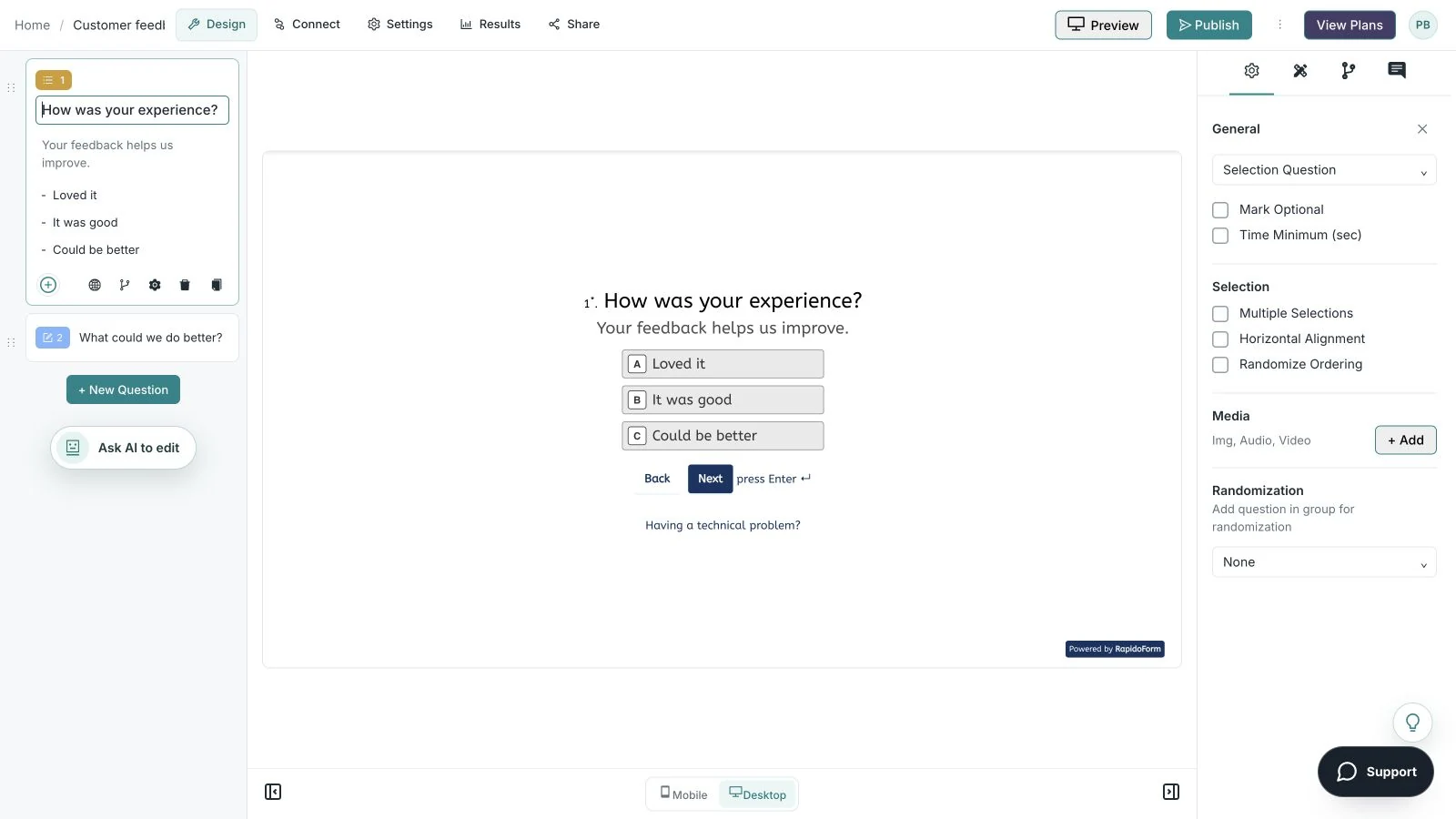
Showing: Make the wording yours. Screens use sample content. Feature availability varies by plan.
A quick look around
Choose a question, edit the answers, explore themes, and switch to the mobile preview.
A silent guided sequence of real builder screens, using a sample feedback form.
Try the builder for free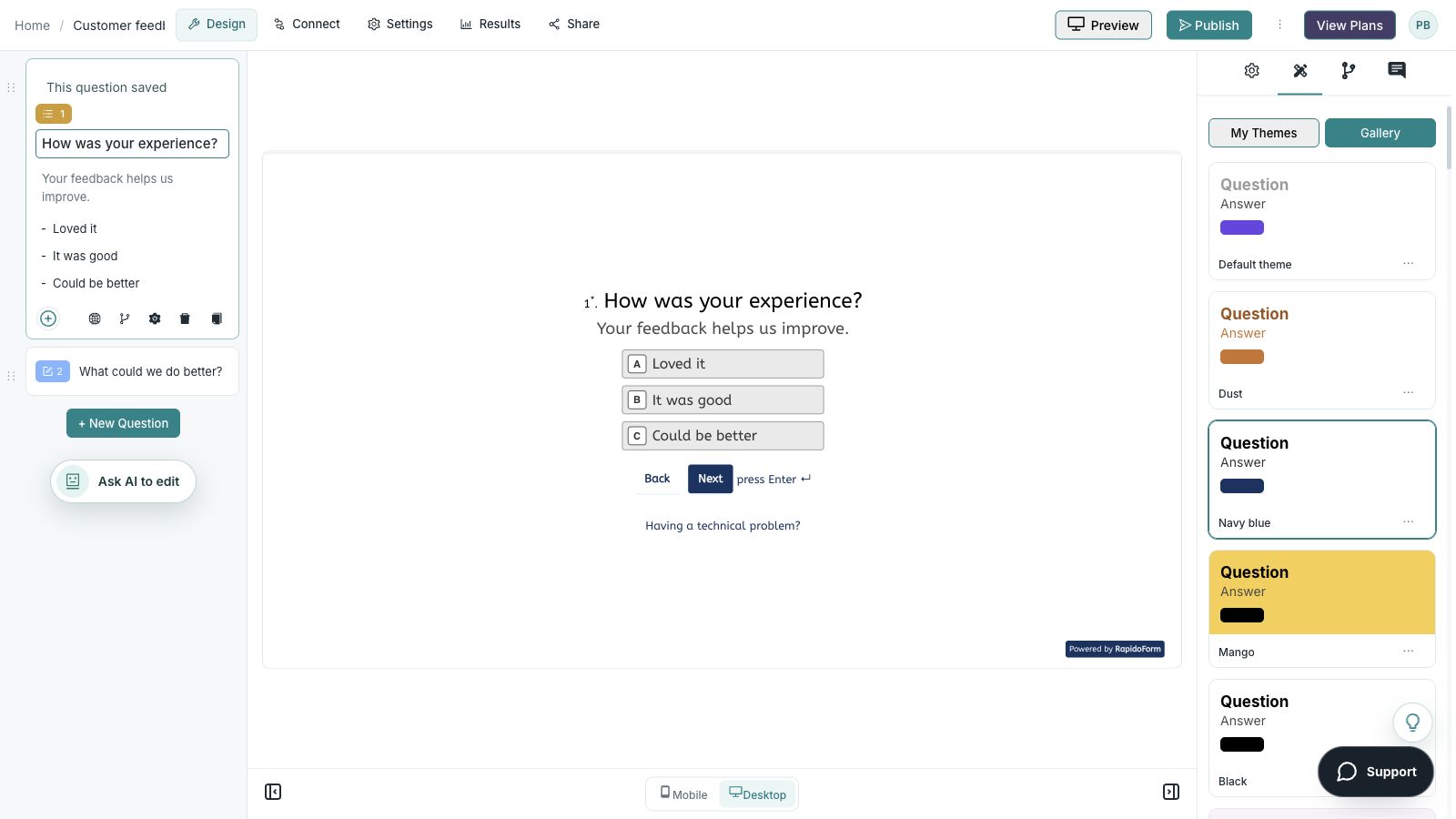
Picture the possibility
Think of a short training refresher. The welcome explains what it covers, each question focuses on a useful concept, and the result points learners toward the material they should revisit.
Illustrative example. Answers stay on this page and are not submitted.
Why RapidoForm
A quiz maker is most useful when you can review the whole experience, not just write individual questions. RapidoForm lets you build the sequence and refine how the participant moves through it.
Explore current plans and usageCreate a blank quiz or adapt a template, then review the questions and answer choices against your objective. Keep the first version focused on one topic.
See how to create a formUse logic where answers need different follow-ups. For a scored quiz, check the scoring setup and each result boundary against deliberate example answers.
Explore logic and routingPreview the questions and endings, publish the checked version, and open the shared link separately. This makes the final respondent journey part of authoring.
See publishing stepsYour workflow, simplified
A template can speed up drafting, but its default questions and scoring still need a careful review for your audience.
Start with a relevant template or blank quiz. Write one concept per question and check facts, answer choices, and any media you include.
Set required answers, logic, scores, and endings as appropriate. Explain instructions and check which capabilities are available on your plan.
Try all answers and outcome boundaries, verify the result, and review desktop and mobile views. Publish only after the full flow behaves as intended.
For a knowledge quiz, decide how points are assigned and whether unanswered questions count toward the total. Check calculations rather than assuming every question has the same weight.
For outcome quizzes, test combinations that produce ties or unusual results. Write a clear ending for each outcome and avoid promising a level of accuracy that the quiz has not established.
Read the scoring guideColors and media should support the questions. Use readable contrast, descriptive image alternatives, and a clear progress experience rather than competing visual effects.
A confirmation or follow-up message should fit the quiz’s purpose. If you use an integration, confirm the result and contact fields arrive correctly with a test submission.
Read the embedding guideFind your starting point
Start with a situation your audience recognizes, then shape the questions around the next step.
Use realistic situations from the lesson and explain the underlying principle.
Keep the subject focused and check facts and answer choices.
Choose questions that separate needs and test the outcome mapping.
Make it useful
Use this plan to review the structure before you add more questions.
| Part of the quiz | What to include | What to verify |
|---|---|---|
| Welcome | Purpose, audience, and instructions | People know whether this is practice or assessment. |
| Knowledge question | A focused prompt and plausible choices | The answer key is correct and the options are unambiguous. |
| Scenario question | A realistic decision from the training | The scenario tests the intended learning objective. |
| Result | Score or outcome with a useful explanation | Boundaries, ties, and empty optional answers behave correctly. |
| Next step | Relevant learning material or contact option | Links work and any follow-up is expected. |
Use these as starting points. Adapt the wording, choices, and required fields to your audience before publishing.
A small change with a purpose
Clear wording helps someone give you the information you actually need. Here are two improvements to try.
“Which one is right?”
“Which step should come first in this situation?”
Adding context makes the decision you are testing explicit.
“You failed.”
“Review the setup steps, then try these practice questions again.”
Constructive feedback gives the learner a useful path forward.
Put the idea into practice
Help a teammate recall a simple request-review process.
Example introduction
Try these short practice questions about our example request-review workflow. Use the result to choose a topic to revisit.
The requester’s goal / Only the submission time / Only the form title
Check understanding of the information needed to route work.
Send it to the exception reviewer / Ignore it / Mark it complete
Use a scenario grounded in the training.
Understanding goals / Routing requests / Handling exceptions
Make the next learning step relevant.
Who this is for
People who have already completed the relevant training.
How the path works
In this illustrative training process, the goal-first and exception-reviewer answers are the intended choices. Check the answer key against your actual process before using the example.
Example ending
“Use your result to choose one part of the request-review process to practice again. The aim is a clearer next decision.”
Illustrative setup. Adapt the wording and behavior to your audience.
After the first response
A missed answer may reveal a learning need, an unclear prompt, or an ambiguous choice. Investigate before drawing a conclusion.
Confirm the intended answer is supported by the lesson and that another choice is not also defensible.
Look for unfamiliar terms, missing context, and accidental clues. Improve the question when it tests interpretation rather than the objective.
Give participants a short explanation and an appropriate resource or practice step. Keep the result constructive.
The details matter
Give the form a complete trial run, including the routes you do not expect most people to take. Check your workspace plan before relying on a feature or response limit.
Compare plan featuresMake the idea yours
You have the idea. Give it a clear structure, make it feel like your brand, and preview the experience before inviting your audience.
Start free. Explore paid features and limits when your workflow needs them.
A concise welcome, a few checked questions, and a result with an explanation and a review resource.
No. Start with the visual builder and a template or blank quiz. You still need to review wording, scoring, and logic to make sure the experience matches your intent.
You can adapt the design and content using the builder’s available controls. Preview the result on desktop and mobile, especially after changing fonts, colors, or media.
RapidoForm includes logic and scoring workflows. Availability can depend on the workspace plan. Test each ending and scoring boundary with deliberate example answers before sharing.
RapidoForm offers a free plan alongside paid plans. Check the pricing page for current response limits, AI allowances, integrations, and other feature availability before choosing your setup.
Keep building
Turn an idea into something useful
Start with a template or a blank form, adapt it to your audience, and preview the complete experience before sharing it.
Build your quizFree and paid plans available. Features and usage limits vary by plan.