Understand the journey.
Ask for the path someone took and look for the moment that needs a closer look.
SHOW THE JOURNEY. UNDERSTAND THE FRICTION.
Let people show you the experience they’re describing. A screen walkthrough can give product, research, and support teams the context a text box misses.
Start with a free account · Build without code
THOUGHTFUL QUESTIONS. MORE USEFUL ANSWERS.
A clear recording task helps people show you what happened, rather than reconstruct it from memory.
Ask for the path someone took and look for the moment that needs a closer look.
Pair a visual walkthrough with questions about expectations, browser, and what happened.
Give the team a specific experience to review before choosing the next investigation.
BUILT INTO YOUR FORM
Choose a short, specific scenario. Explain what to share and what to keep out of the recording.
Read the recording question guideAdd a Screen question to collect a walkthrough as part of a form.
Ask for the intended outcome and any useful details with other question types.
Check capture support, permissions, playback, and a saved test response on your target setup.
ONE QUESTION CAN OPEN A CONVERSATION
Observe the route a participant chooses and ask what they expected.
Example prompt · Adapt it to your audienceGive support a specific sequence to investigate with the reported issue.
Example prompt · Adapt it to your audienceFind the moment where instructions and expectations diverge.
Example prompt · Adapt it to your audienceGET A FEEL FOR THE EXPERIENCE
Explore three example prompts below. This is a task-writing preview; it does not share or record your screen.
Show where you would look first. If you hesitate, explain what you expected to find.
Look for the gap between the label a participant expects and the route they choose.
Illustrative prompt. This page does not record your screen.
FROM A GOOD QUESTION TO A WORKING FORM
Ask for a short walkthrough with a clear goal and explain the purpose of the recording.
Select Screen in the question picker. Review the options offered by your current form and plan.
Use synthetic content to verify browser support, sharing permission, capture, and the saved response before launch.
Inside RapidoForm
See where you choose questions, edit the wording, and preview the experience. These real builder screens show a sample feedback form you can use as a starting point.
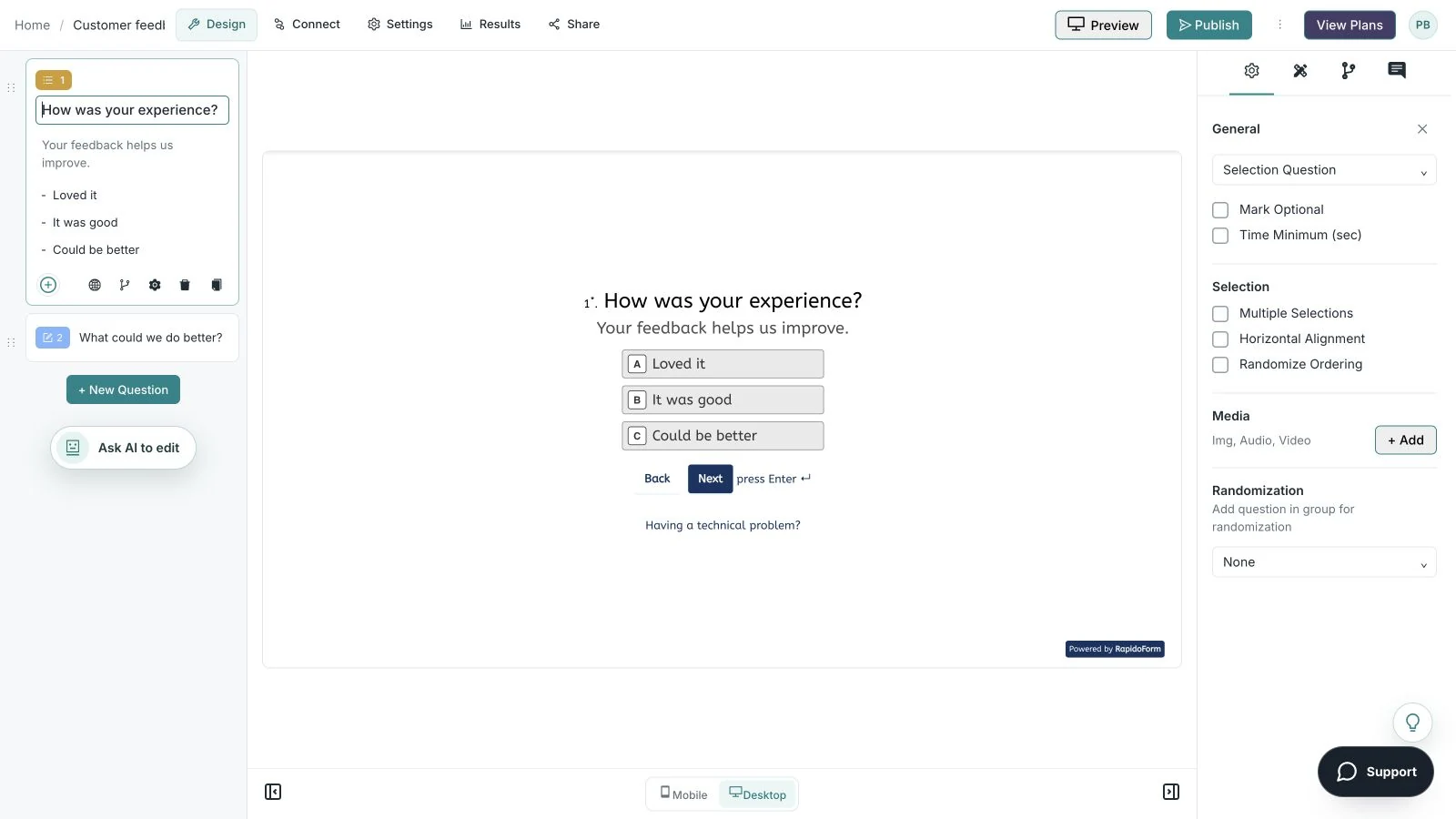
Showing: Make the wording yours. Screens use sample content. Feature availability varies by plan.
A quick look around
Choose a question, edit the answers, explore themes, and switch to the mobile preview.
A silent guided sequence of real builder screens, using a sample feedback form.
Try the builder for free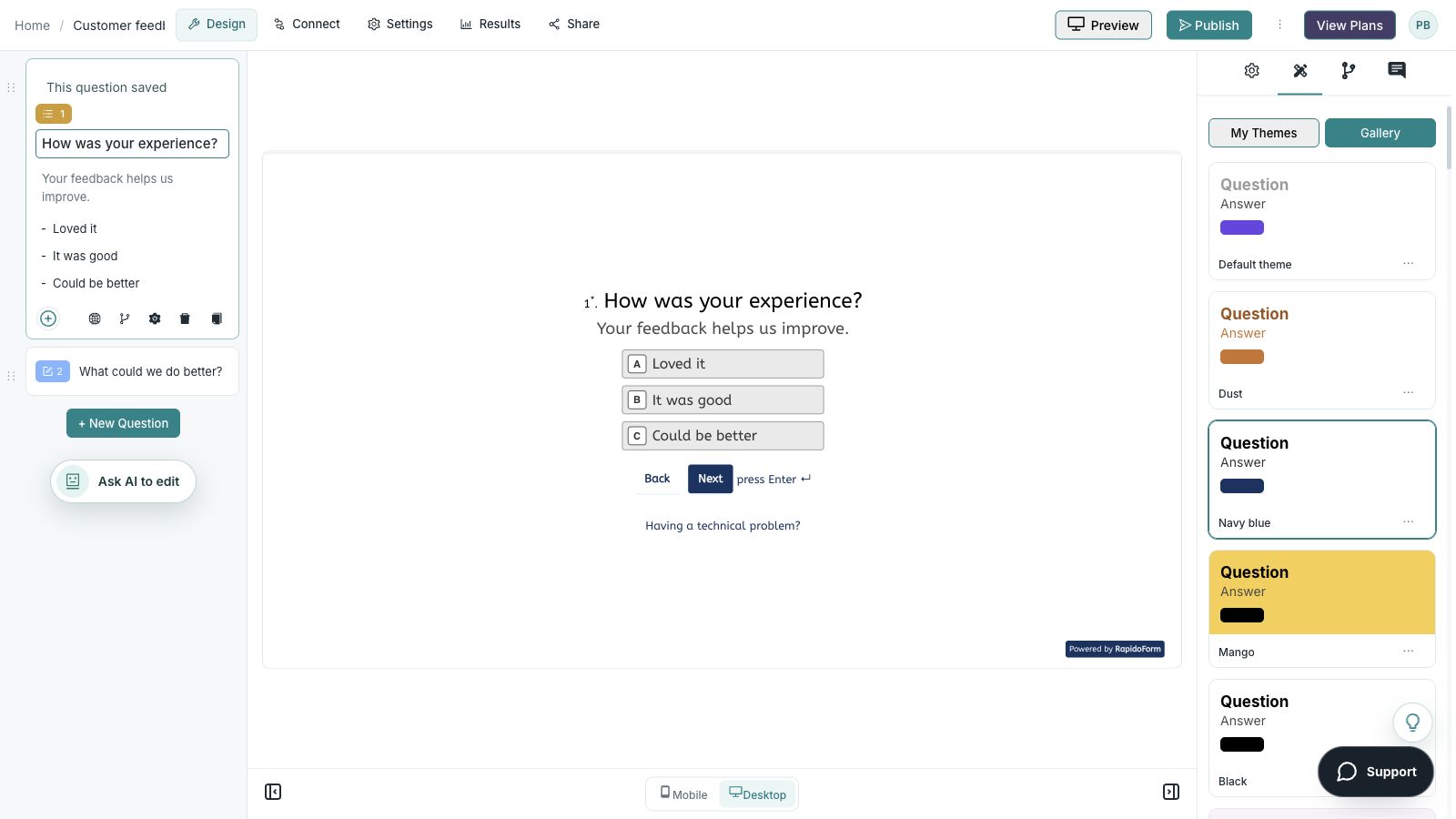
No. The example here illustrates how to write a clear screen recording task. Screen capture takes place in a configured form and requires the respondent’s browser permission.
Screen sharing support varies by browser, device, and operating system. Test the exact setup your audience uses and provide an alternative when capture is unavailable. A mobile-friendly form alone does not establish screen-sharing support.
Explain the goal, keep the task focused, and ask respondents to avoid showing passwords, private messages, or unrelated personal information. Use synthetic content to test capture, playback, and submission.
Create a free account to explore the builder. Question availability, response and storage allowances, and advanced features depend on your workspace and plan. Check the current pricing page and the question picker’s plan indicators before launch.
BETTER QUESTIONS START HERE
Explore the builder. Choose the plan that fits.